What is Document classification?
Document classification classifies an input document into one of your user-defined categories. It works across scanned images, photos, and born-digital PDFs, and requires no templates or fine-tuning.
Document classification is a powerful tool for automating document processing pipelines. For example, if user have bunch of documents and several extraction tasks, user can use document classification to classify the document into different types. Then, user can use Information Extract by mapping the document type to the appropriate schema for the extraction task.
Why use Upstage Document classification?
- Any document: Robust across scans, photos, and digital documents
- Flexible taxonomy: Freely define and update labels to fit your domain
- No fine-tuning required: Deploy immediately without templates/training, lowering ops cost
- Consistent operations: Use directly for document routing and automation branching
What models does Upstage provide?
| Alias | Currently points to | RPM (Learn more) |
|---|---|---|
| document-classify | document-classify-260904 | 100 |
| document-classify-nightly | - | 100 |
Sending a request in three simple steps
Add input files to messages
You can input a single file, which should be provided as URL or base64 encoded string in the messages field, formatted as follows:
Requirements for the input file are:
- Supported file formats: JPEG, PNG, BMP, PDF, TIFF, HEIC, DOCX, PPTX, XLSX, HWP, HWPX
- Maximum file size: 50MB
- Maximum number of pages per file: 100 pages
- Maximum pixels per page: 200,000,000 pixels. (For non-image files, the number of pixels is determined after converting the file to images at 150 DPI.)
Set class description in response_format
A class description defines the document types to be classified. It can be provided in the response_format field.
- const: The exact label string the model must return. Keep it short and consistent (e.g.,
invoice,receipt). - description: A natural-language sentences that clarifies each label. Disambiguate between labels and, if helpful, include brief include/exclude examples to improve accuracy.
Get the response
The response structure mirrors the OpenAI Chat Completion Object.
The classification result is in the content of the chat completion message.
After that, user can use the result to their own tasks such as routing the document to the appropriate extraction task.
Writing a class description
Follow these recommendations to design labels and descriptions for better accuracy:
- Clear label names: Use concrete, non-overlapping names (e.g.,
invoice,receipt,contract). - Differentiating descriptions: State key criteria in 1–2 sentences and add decision rules for borderline cases.
- Use examples (optional): Brief include/exclude examples help with ambiguous cases.
- Manage label count: Too many labels can confuse the model. Start with core labels and expand gradually.
- Consistent format: Keep label casing and separators (lowercase, hyphen/underscore) consistent.
Example:
Class design restrictions
- The number of classes may have up to 1000 values
- The number of classes must be at least 1.
- Classes with duplicate names are ignored.
Getting the score of the class
The model returns the class with the highest score. The score is a value between 0 and 1, where 1 is the highest score.
Users can get the score of the class by using the additional_values tool call.
Examples
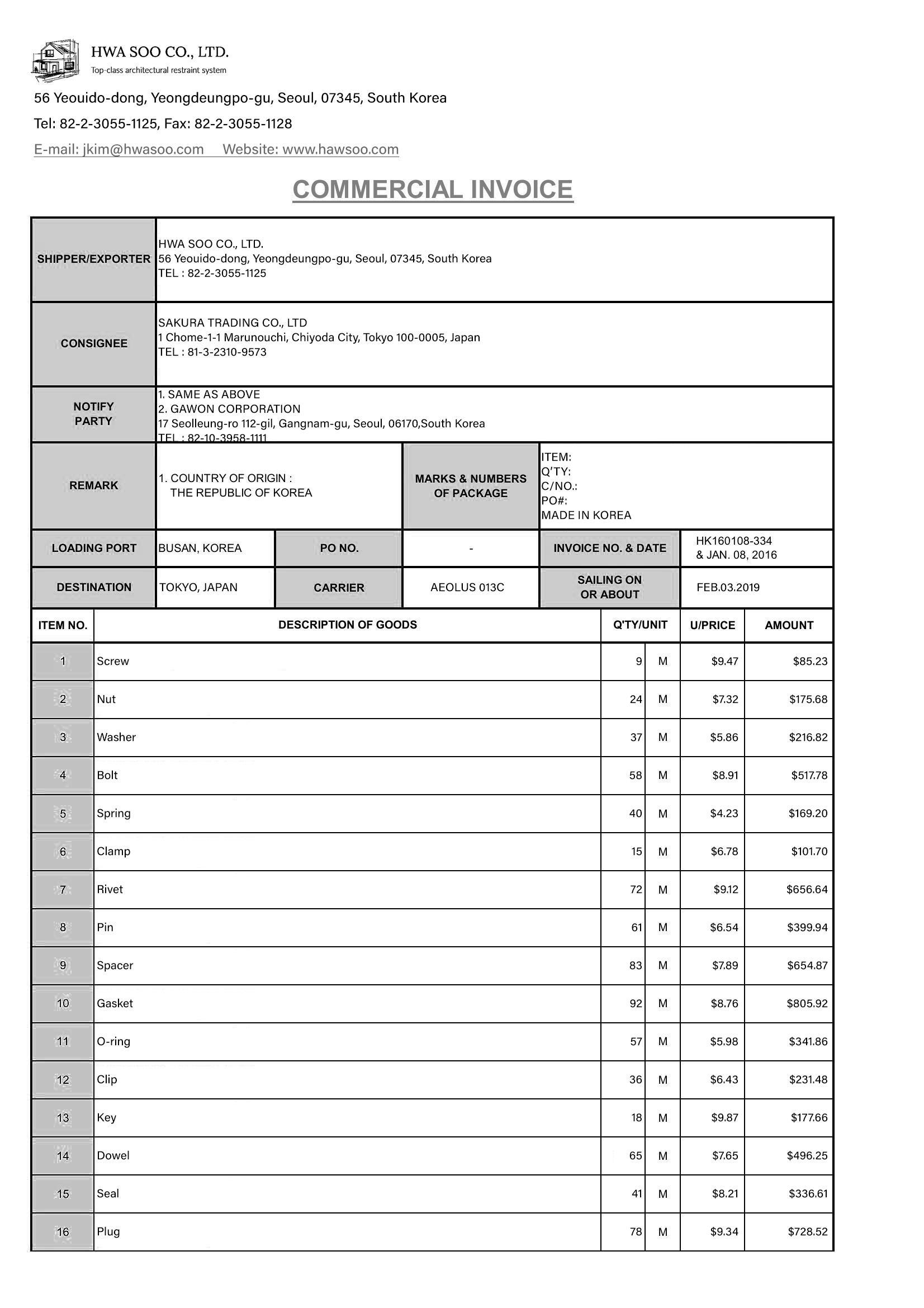
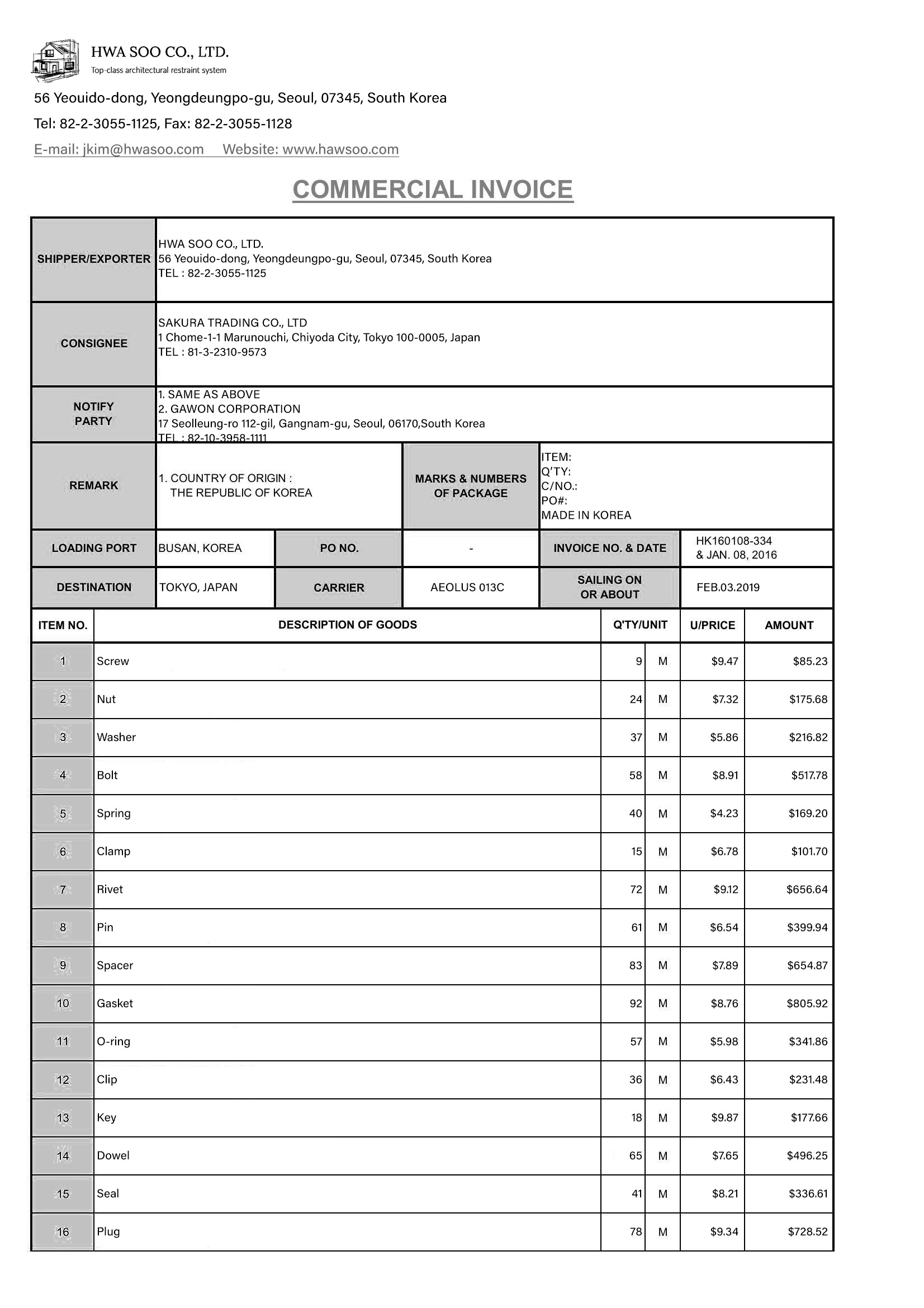
commercial-invoice.jpg
Request
Response